
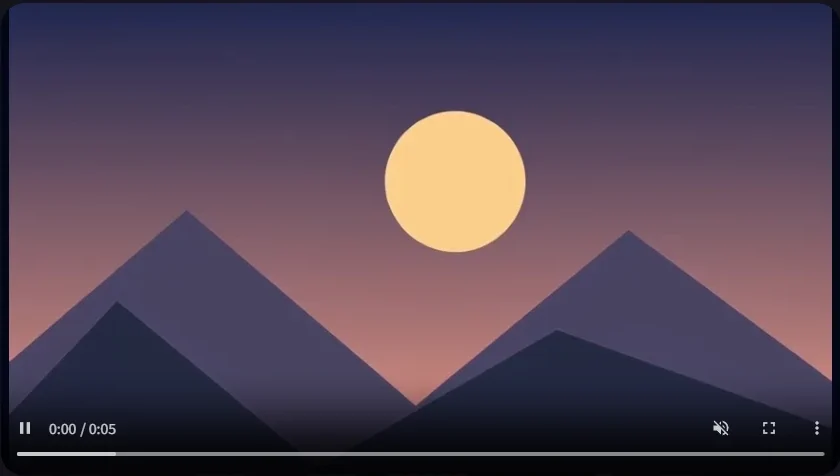
Start with a PNG, JPG, or WebP and sign in to Pictomove’s image-to-video tool. The example above uses a simple illustration of a sunset over mountains to make a five-second clip.
1. Upload the starting image
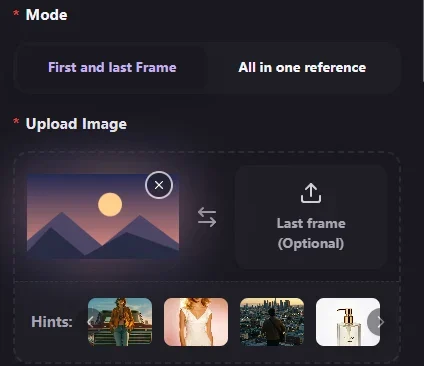
Select Seedance 2.0 Fast and keep First and last Frame selected. Click First frame and choose your image. Its thumbnail appears in the upload box. For this example, leave Last frame empty.
2. Describe what should move
In Prompt, describe one movement and name any details you want to preserve. For the sunset image, we used this prompt.
Slow camera push toward the sun over the mountains. Keep the composition and colors stable.
Try 16:9, 480P, and 5s for a landscape clip like this one. The Create button shows the credit cost for your current settings. Check that amount against your balance before submitting.
3. Generate and preview the clip
Click Create and wait for the video player to appear. Play the result and watch the part of the image you asked to move. If the camera moves too quickly, try asking for a slower push and keep the rest of the prompt the same.
Use View My Project to find the saved clip in your history and download it when you are ready.